# Hiring Pipeline

[By integrating with Lever ](/api/product-guide/application-integrations/lever.md)or Greenhouse, we leverage AI for insights and preparation, and customizing your interaction with candidate profiles, Thoughtful ATS offers a comprehensive suite of tools to support your hiring goals.

### Integration with Applicant Tracking System

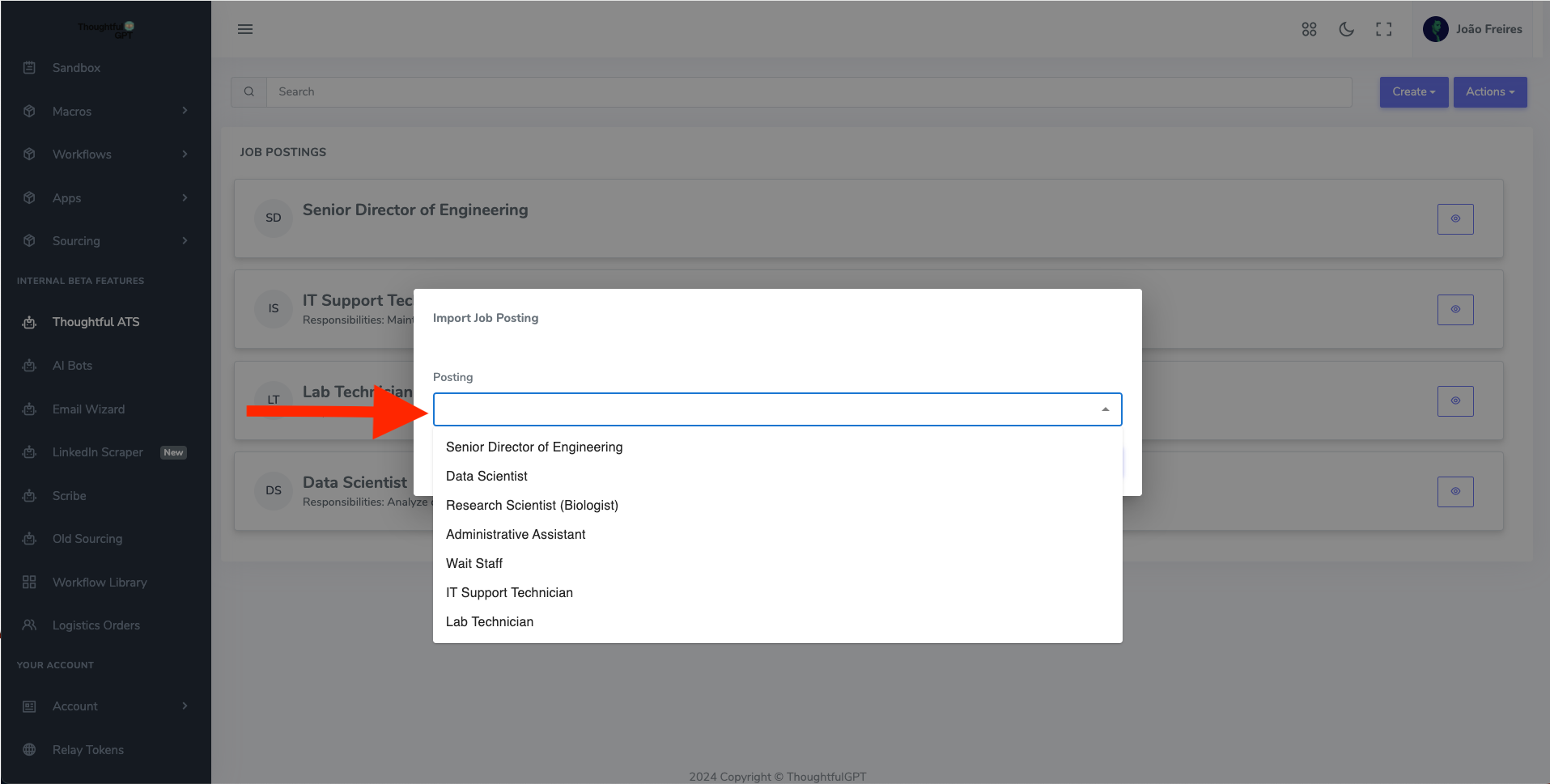
1. Click on “Create” and “Import from Lever” and choose the job posting you would like to be imported into the Thoughtful ATS to set up an AI pipeline process.

<figure><img src="https://lh7-rt.googleusercontent.com/docsz/AD_4nXdxkKsNn2O-07oYwRNIBWPFkEai7lugfBOaFLksvFr2pFMSNxMTzqAQIbavbQHryX7gweW_kS3jdb6YXmKUyP9ZhPP1ot4j2trv4dKh6Gfst0D6KA12yBwM5-m1PPL3r9AUuA__zA?key=jgA_4YJZSb05vpsrjbMVoh9T" alt=""><figcaption></figcaption></figure>

<figure><img src="/files/Z2D75a37y0Pwv5cVU6VJ" alt=""><figcaption></figcaption></figure>

2. Upon importing a job, click the “Eye” icon to view the applicants of job posting. To view a snapshot of all applicants and their current interview stages.

<figure><img src="https://lh7-rt.googleusercontent.com/docsz/AD_4nXdaRp1Sb5dNQKA5nbHNRytTRWwpuJqqCOJoc4xVoNEoojq_kTJtHDgMTrTssPTtx8Vr4-DIkWeSuSyjvgCkj2joFYwbDqGrJVaWoYW463ap5UnsRq_JJmHrZn2c4EX0yL1t-CpSdQ?key=jgA_4YJZSb05vpsrjbMVoh9T" alt=""><figcaption></figcaption></figure>

3. To filter out the applicants by stages, click on the corresponding stage you would like to view.

<figure><img src="https://lh7-rt.googleusercontent.com/docsz/AD_4nXcP3TXUFNa36CF-0GTABveXh2dUmsxHumfTH2TL-IMDIOt-gt0Y8WsVJYh5P3rPn62fSGIkVdqyx4GXHe6lT520N6P6HDpHZzGVGd1NL-mcRmpq-OELRVSzdJgmrKzQqqruNhVTAg?key=jgA_4YJZSb05vpsrjbMVoh9T" alt=""><figcaption></figcaption></figure>

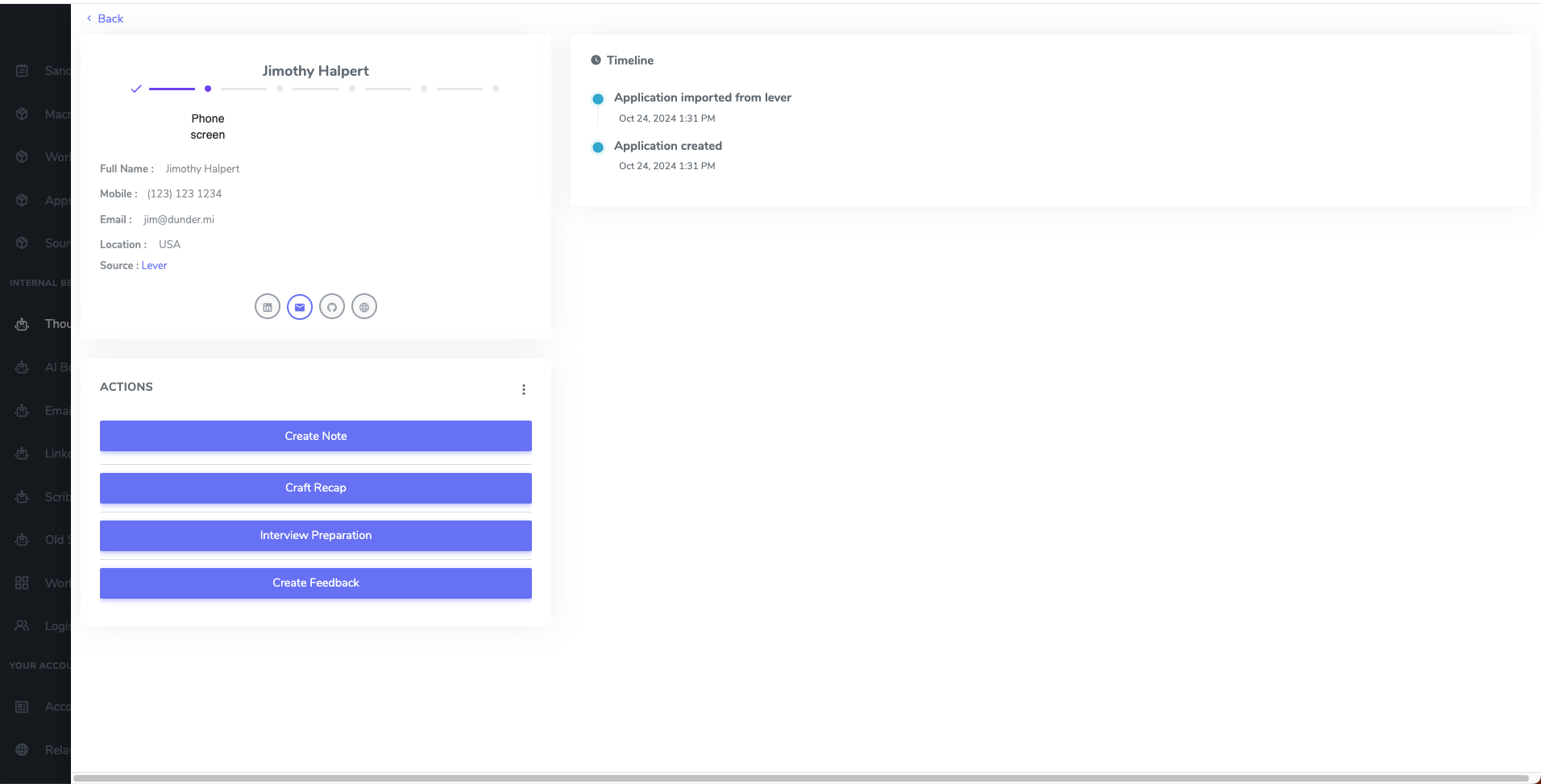
4. Click on the “View” button by the candidate’s name to get an understanding of their timeline history and to view any notes added from the Thoughtful ATS.&#x20;

<figure><img src="https://lh7-rt.googleusercontent.com/docsz/AD_4nXe7llta5DZQIyaYURdXx5rI2SsGt17PzWHcqab0qCLgsenOA0Thj7TUTW3fxZZ0ac0YN6qFRM9ox8OZNstEfPf0ls40R0g4pdUrR8diCVodfhRXIbFY0v5Qti20NkG6XPaS56Hd-Q?key=jgA_4YJZSb05vpsrjbMVoh9T" alt=""><figcaption></figcaption></figure>

<figure><img src="/files/7GelY9Ty0VGKRvxjz51r" alt=""><figcaption></figcaption></figure>

### Thoughtful ATS Features:

#### Create note:

Click “Create Note” and you can either type a raw note or create a note from a transcription. All notes are pushed into your ATS source.

<figure><img src="https://lh7-rt.googleusercontent.com/docsz/AD_4nXcSuK_A5gj3j13sK0ZppfwL1EZIVGZrhwIhV1YLtpJwG6cxNFu7XYiLO6BdKmaQRldc---MmPuzdbq4_2CEW-jXo2QQCYKihVmrT5UqzZjB3HMZZyVPuuXMrR2X9E8Oo-y5dbz4aw?key=jgA_4YJZSb05vpsrjbMVoh9T" alt=""><figcaption></figcaption></figure>

You have the option to upload a transcript from your G Suite file system or paste a transcript. This transcription will then be processed for insights or summaries or a specific macro from our Macro Library.

Click “Create” to save this note and push it into your ATS source.

<figure><img src="https://lh7-rt.googleusercontent.com/docsz/AD_4nXfqk5N_8yCVPi2twQJREjkBXSVNQT66dEkkY_e2hw07PdYS4JfyxhqtAfs_MunLKmo4vxt5GwQfvp-JtuD9fXl7pnKm_X8-CNUi5fBDlR2EPDGCWKkFBIMF1pS_9P-48cN7rTKznw?key=jgA_4YJZSb05vpsrjbMVoh9T" alt=""><figcaption></figcaption></figure>

<figure><img src="https://lh7-rt.googleusercontent.com/docsz/AD_4nXelK2Tdy64GS4PFF43NCGs3jAGAiFgxkRUt9tPWSYZhJ_O1CIwm8jLS8FMXhE-KjybMS_f7W8q4bdeEsuQtkHFQOljekVLIEzsbMlSXW2hD_AjE5AqFgdOXzUvyciu25maIsAzSFA?key=jgA_4YJZSb05vpsrjbMVoh9T" alt=""><figcaption></figcaption></figure>

Click “Create” to save this note and push it into your ATS source.

#### Craft Recap:

Click “Craft Recap” to create a high-level view of all interactions the candidate has had throughout their journey, including key dates, action items, and additional notes.&#x20;

<figure><img src="https://lh7-rt.googleusercontent.com/docsz/AD_4nXeTXp1sXtSu1k9_Ze_TruFDmBz7Pb5BinrPCFJxfg7B2QZAB6XLY3pvdQ1idnWsxjr_P8WQHFJS1CT2_Hbn7ZdpPatQ0J6dWJGh9nSekXfncsxyYkOC4pBtY1hjs2J8DPieFWOS?key=jgA_4YJZSb05vpsrjbMVoh9T" alt=""><figcaption></figcaption></figure>

This provides a concise overview for the interview team, highlighting the candidate's experience in your pipeline for quick reference.

<figure><img src="https://lh7-rt.googleusercontent.com/docsz/AD_4nXfOii4KoBGPqcXHVJDoB1xN79M70ig-CBnLjrSe1GhQQJTqfvOdiN-VZ01c85cmwO5SUBN95IG-CP_fSIxdwvZuJKuyrvGAjkse8jNZ5rIo9u9Apx3I--pUQqAguZkCtT0XvOZOKw?key=jgA_4YJZSb05vpsrjbMVoh9T" alt=""><figcaption></figcaption></figure>

#### Interview Preparation:

Click “Interview Preparation” to set up an interview preparation kit that references the stage of the candidate in your interview pipeline.

&#x20;

<figure><img src="https://lh7-rt.googleusercontent.com/docsz/AD_4nXellkyIWBsLQ4r3anpaf8-7gqKnxfun-aL_O3Tsh45A-I1Fc3Iyg0JhGMT3iJVcbZwMLkpYqXh-SJjQ671Rnijd-aqZ0Rb7AanS-2T5_lnlGRUgGFjM7QlhTQaDA9MFDKTs0Cwi?key=jgA_4YJZSb05vpsrjbMVoh9T" alt=""><figcaption></figcaption></figure>

The kit will highlight key skills and competencies explored, suggest areas for further exploration, and offer coaching on asking questions to drive candidate quality signals during interviews.

<figure><img src="https://lh7-rt.googleusercontent.com/docsz/AD_4nXdtSrjVzVSm_KInidB7rquXQtaNLsRIAB4Qa1ZqM1FJTVE9BDgbdQLkBze4BY10l2EDAFsXLXkEcYK8fXDpr-HEslKjDKlOSTlRZTMIyI4NH84r8LMYsYf4N6XKmxOCfPsBIjCm?key=jgA_4YJZSb05vpsrjbMVoh9T" alt=""><figcaption></figcaption></figure>

#### Create Feedback:

Click “Create Feedback” to use AI to autofill candidate scorecards by adding a transcript from Google files or pasting a transcript into our system.

<figure><img src="https://lh7-rt.googleusercontent.com/docsz/AD_4nXdkSrpDqI5uDOUeTK20Wic2m2pOovd0DXj0HH9tiskfgnLIfk6Ic2DKVAaOg0I3oaNv4uz6fPzt-SQtoCvi5rAXpPLiIjcyIyoC-9kCcy4gF_MZGZSTcrfIV6gKBWprQKXeRAG2zw?key=jgA_4YJZSb05vpsrjbMVoh9T" alt=""><figcaption></figcaption></figure>

Step 1:   Select the feedback form you'd like to autopopulate and click okay. The AI will analyze the transcript or notes added to extract feedback, comments, and essential details for the scorecard.

<figure><img src="https://lh7-rt.googleusercontent.com/docsz/AD_4nXcLTt4DkYRsCdX80_qDI3CAC-myjFdvk9pvd39AlgS3fm0X2PjZgghfqb_VaXtRWGRRNEV8ng7sVyzzcmVDE3A9OvVcR2CzRS0N8LzcwqT-QMnBjULKa3mTUiI1oT9JFJYd6Arm6g?key=jgA_4YJZSb05vpsrjbMVoh9T" alt=""><figcaption></figcaption></figure>

<figure><img src="https://lh7-rt.googleusercontent.com/docsz/AD_4nXduKfIk4QVuBndcIdheNEH6Wm0kk44B-AtqUFyhfWF7TR1Y3BiSUegRZMmF4O6yNS8sB7Zwx88TSZzy9CncGsrCAmzvscqmMfcG3o0ew3KIY9kFWZLbjX4qylXAyXQpDDzae01u3w?key=jgA_4YJZSb05vpsrjbMVoh9T" alt=""><figcaption></figcaption></figure>

Step 2: Review the AI-generated feedback and initial rating, ensuring they align with your scorecard methodology. Make any necessary edits before submitting the scorecard, which is then pushed directly into Lever.

Step 3: Click “Submit” to save the feedback form and have it pushed to your source ATS.

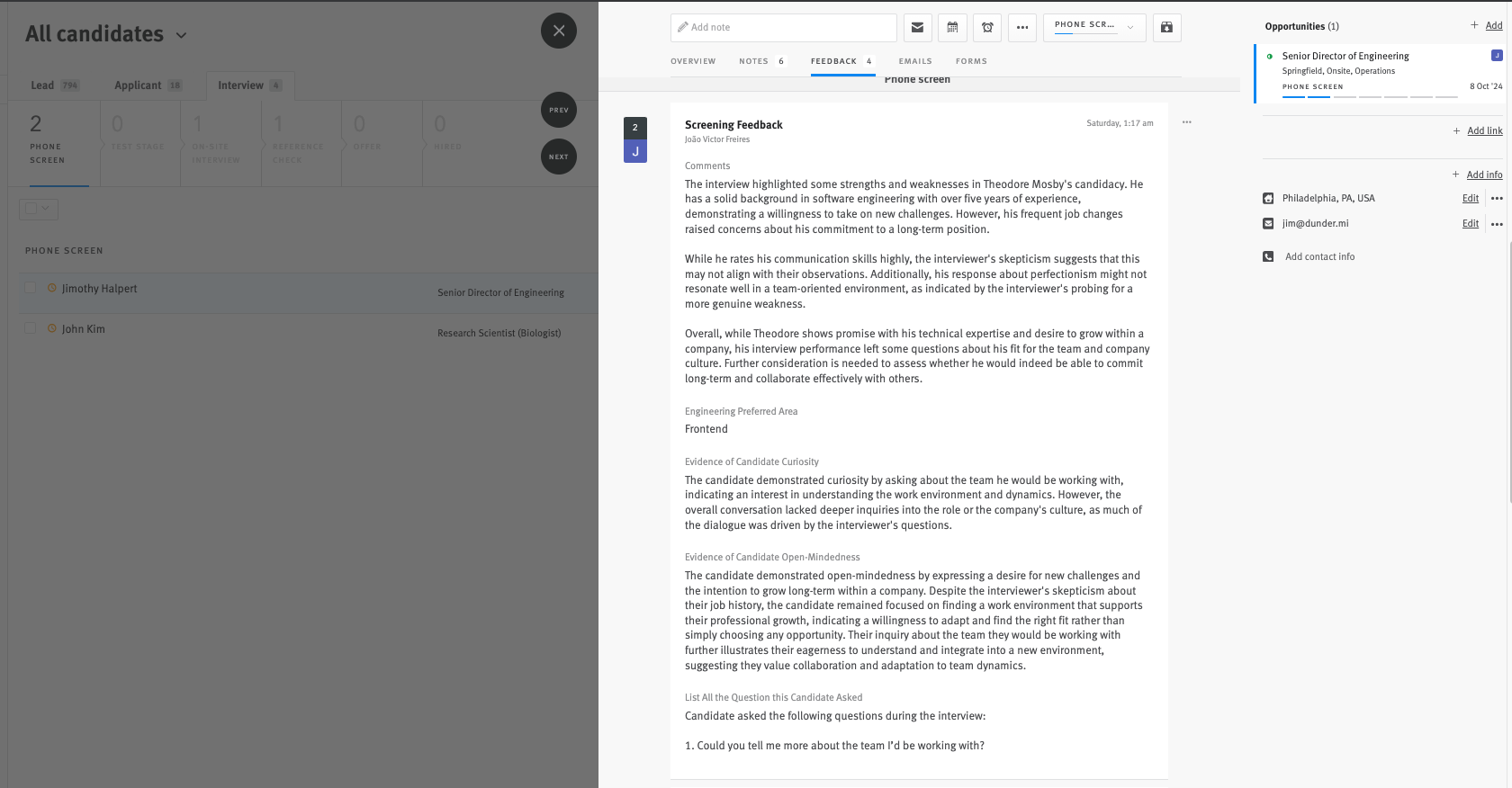
The feedback form will then be generated within the candidate's profile within the "Feedback" section.<br>

<figure><img src="/files/AIOKo0JwocepT3IW37rY" alt=""><figcaption></figcaption></figure>

### Creating Automated Interview Preparation kits

Step 1:Go to the Thoughtful ATS Postings page and click “Actions” and then click “Interview Preparation”

![](https://lh7-rt.googleusercontent.com/docsz/AD_4nXdIn7Oyx9mtmtMoyYf67El59Xpg55UnvRTrxyd0EltSt5JxYEnnbvxBpOd83WIticnVVNTecIOZb3QYcc7Za-e9Bgl1IEEEOTIpd-s0x9gM-q9dBxx2117KpwcWsjXLJC6WfbQ2ig?key=jgA_4YJZSb05vpsrjbMVoh9T)

Step 2: Enable the tool by clicking the button by “Active” and input the time you would want these packets to be sent to you.

<figure><img src="https://lh7-rt.googleusercontent.com/docsz/AD_4nXedE0gAjKCeHcNTwNXrTWoKKGkop-JSFKKl8izC749taVxvHl70pfmewysR8-LqlFYsbxZr8ktnhFkH_78cdlbNmj68hS7Q6CH64OIuTD6GDn0oQA_H-b9uItYIXkZa2ScSjiAV?key=jgA_4YJZSb05vpsrjbMVoh9T" alt=""><figcaption></figcaption></figure>

<figure><img src="https://lh7-rt.googleusercontent.com/docsz/AD_4nXecVJS4IhyD5gErUuejxYTa5K90XDvYJZdc5soC5cgiBAqSGvQu_wvVHlabWcnKvX6ayqFbirTTg9xDop1cNXHn37FSB4vOG6Wi8kOZ1kfdHuxeOxh1olS_jSNSedrJrLO9Al89zw?key=jgA_4YJZSb05vpsrjbMVoh9T" alt=""><figcaption></figcaption></figure>

Step 3: Specify when and how you want the AI to deliver prep packets, such as via Slack message or as a voicemail that will also be sent to Slack.

<figure><img src="https://lh7-rt.googleusercontent.com/docsz/AD_4nXdkavWlk6SUInIwQckFXd4jvOFr2o8AwvP-SsqBC3LZVA2oEgWfdpzLQBqpFLhqE0h_TqzP8Pid2euG7Hp0pZxrVpCS_ZMGtsJo_TxoPBv65BchyRzliS4_9QRy7kf1UB1bTFHz?key=jgA_4YJZSb05vpsrjbMVoh9T" alt=""><figcaption></figcaption></figure>

Step 4: Customize the content strategy for your prep package by selecting a custom macro that matches your preferred style of feedback.

<figure><img src="https://lh7-rt.googleusercontent.com/docsz/AD_4nXcL1XGgXrUZz8-SUdlNizqfeL8mGl0jjfXzBCwhmHj_I8bi4--FiT1sMLKE8l4e8g0duCOyWgheaQH8_AByq1V2Mzn7j7IsJFHDTI8UH2p5aApf0QDxy0ROD9QmKSllUDRZRi1U?key=jgA_4YJZSb05vpsrjbMVoh9T" alt=""><figcaption></figcaption></figure>

Step 5:  Save your settings. You will receive your personalized prep package for every interview, tailored according to the policy you've set on our platform.

<figure><img src="https://lh7-rt.googleusercontent.com/docsz/AD_4nXeoq8IfQj1-GkkQGhZS1hZTXCIH_LU9OYNf-pEN8j0mzrzkwLq2wgc8uZpj_mL4HnOIc8SdkZEp4oZMXvUkq3oH4IRwyerWGUgfZza17Q5FpDPg2aSO5pKTG9LCutHhlrF32vBrDw?key=jgA_4YJZSb05vpsrjbMVoh9T" alt=""><figcaption></figcaption></figure>

\ <br>


---

# Agent Instructions: Querying This Documentation

If you need additional information that is not directly available in this page, you can query the documentation dynamically by asking a question.

Perform an HTTP GET request on the current page URL with the `ask` query parameter:

```
GET https://docs.rekap.com/api/product-guide/tools-and-features/hiring-pipeline.md?ask=<question>
```

The question should be specific, self-contained, and written in natural language.
The response will contain a direct answer to the question and relevant excerpts and sources from the documentation.

Use this mechanism when the answer is not explicitly present in the current page, you need clarification or additional context, or you want to retrieve related documentation sections.